







How to Make Your Smartwatch Battery Last Longer: 15 Battery Saving Tips
Is your smartwatch battery draining fast? Discover 15 practical tips to extend battery life, optimize display settings, reduce power use, and fix battery drain.
To make your smartwatch battery last longer, start with the settings that affect power consumption most often: screen brightness, screen timeout, Always-On Display, notifications, and background activity.
You don't necessarily have to disable every smart feature. A few practical adjustments can help reduce unnecessary battery use while keeping the functions you rely on, such as activity tracking, sleep monitoring, and important notifications.
If your smartwatch battery is draining fast, this guide explains the possible causes, shares 15 battery-saving tips, and shows how to troubleshoot unexpected battery drain.
Why Is My Smartwatch Battery Draining So Fast?
Smartwatch battery consumption depends on your device, its settings, and how you use it.
Several features can increase power consumption, especially when they operate frequently or continuously.
| Battery Drain Source | Why It May Use More Power |
|---|---|
| High screen brightness | Requires more display power |
| Always-On Display | Keeps part of the screen active |
| Frequent screen wake-ups | Activates the display repeatedly |
| Notifications | May trigger screen activity, vibrations, and syncing |
| Health monitoring | Uses optical sensors and background processing |
| Workout tracking | Can involve continuous sensors, timers, and location services |
| Wireless connectivity | Bluetooth, Wi-Fi, and cellular activity use power |
| Background apps | Some apps refresh or process information in the background |
Not all features have the same impact on every smartwatch.
For example, a watch with a built-in GPS receiver may use additional power during outdoor navigation, while another watch may rely on a connected smartphone for location information.
The best way to improve battery life is to identify which features you need and reduce unnecessary activity.
15 Smartwatch Battery Saving Tips That Actually Make Sense
1. Lower Your Smartwatch Screen Brightness
The display is one of the first settings worth checking when trying to extend smartwatch battery life.
A brighter screen can be useful outdoors, but maximum brightness is often unnecessary indoors.
Try using a comfortable, lower brightness level when working at your desk, relaxing at home, or spending time in a café.
Battery-saving tip: Choose the lowest brightness level that remains easy to read. Increase it when lighting conditions require better visibility.
2. Shorten the Screen Timeout
Screen timeout determines how long the display remains on after you interact with your watch.
If the screen stays active for a long time after checking the time or reading a notification, it may consume unnecessary power.
Choose a shorter timeout if your smartwatch supports the option.
For example, a 10–15-second setting may be sufficient for quick interactions, although available options vary by model.
3. Turn Off Always-On Display When You Don't Need It
Always-On Display, also called AOD, keeps the time or other information visible without requiring you to wake the full screen.
Although convenient, it consumes energy even when you're not actively interacting with the watch.
Turning off AOD can help extend battery life on supported models.
When to use it: Consider enabling AOD when continuous time visibility matters and disabling it when conserving battery is more important.
4. Reduce Unnecessary Screen Wake-Ups
Some smartwatches automatically turn on their screens when you raise or rotate your wrist.
This is convenient, but frequent accidental wake-ups may increase battery consumption.
If your device offers adjustable raise-to-wake settings, consider disabling the gesture or using touch or button activation instead.
You can still check the time whenever you need it.
5. Limit Unnecessary Smartwatch Notifications
Notifications can activate your smartwatch's vibration motor, display, and wireless communication.
If you're receiving frequent promotional alerts, social media notifications, and app updates, those interruptions may also increase battery use.
Keep notifications for what matters most:
- Important calls and messages
- Family communications
- Calendar reminders
- Essential work alerts
Turn off less useful promotional and entertainment notifications.
FANY Luna tip: FANY Luna supports synchronized phone notifications. Review the available notification permissions in your phone and companion app to select the alerts you actually want.
6. Adjust Health Monitoring Settings Carefully
Smartwatches may use optical sensors to monitor heart rate, blood oxygen, sleep, and other wellness metrics.
Some devices allow users to change measurement frequency or disable specific monitoring functions.
If your watch provides these options, review which measurements you regularly use.
However, disabling health monitoring may reduce the completeness of your activity records or affect available alerts.
Avoid turning off important monitoring features without understanding the trade-offs.
7. End Workout Tracking After Exercise
Workout modes may continuously record heart rate, movement, duration, and other metrics.
If you forget to end a workout, the watch may continue operating in an exercise-tracking mode longer than intended.
After completing a run, cycling session, or gym workout:
1. Open the active workout screen.
2. End the session.
3. Save your workout if prompted.
4. Return to the normal watch interface.
This habit can help prevent unnecessary extended tracking.
8. Use Location Tracking Only When Needed
Location-related functions can consume additional energy, depending on the watch design.
Some smartwatches include built-in GPS, while others rely on the connected smartphone.
For devices that support adjustable location settings, use continuous tracking only when it is helpful for your activity.
If you're recording an indoor workout that doesn't require route information, choose an appropriate indoor activity mode where available.
9. Keep Bluetooth Connections Stable
A smartwatch may communicate with its companion smartphone through Bluetooth.
Repeated disconnections, reconnection attempts, or syncing problems can contribute to unusual battery behavior in some circumstances.
Keep your watch and phone within a reasonable connection range when using connected features.
If disconnections occur frequently, check the manufacturer's pairing and connectivity instructions.
Should you turn Bluetooth off?** Not necessarily. Turning it off may disable notifications, synchronization, and other connected features. It is usually better to troubleshoot connection problems first.
10. Limit Unnecessary Background App Activity
Some smartwatches allow apps to refresh information in the background.
Frequent background updates may use additional processing and wireless communication.
If your device supports background app controls, review which apps genuinely need to remain active.
Avoid disabling services required for important notifications or features you rely on.
This tip applies mainly to watch platforms that support background app management. Not all smartwatches offer these controls.
11. Use a Simple, Less Demanding Watch Face
Your smartwatch face can also affect energy consumption.
On some devices, animated designs, constantly updating information, and frequent visual changes may require additional processing or display activity.
If battery life is your priority, try a simpler watch face with fewer continuously updating elements.
For compatible FANY smartwatches, you can explore available designs in the [FANY Watch Faces Gallery](https://fany.us/pages/watch-faces).
Remember that the power difference between watch faces depends on device hardware and software. A simple-looking design is not automatically the most efficient.
12. Enable Battery Saving Mode When Available
Many smartwatches include a battery-saving or low-power mode.
Depending on the model, this setting may limit display activity, background processing, wireless connections, or health measurements.
Battery-saving mode can be useful when you're traveling or don't have immediate access to your charger.
Before enabling it, check which features will be limited.
Not all watches provide the same power-saving options, and the availability of a dedicated mode should be confirmed for your model.
13. Keep Your Smartwatch Software Updated
Software updates may include performance improvements, bug fixes, and changes to power management.
If you notice unusual battery drain after an app or system update, check whether a newer update is available.
Use the manufacturer's official app or instructions to install supported updates.
Keep in mind that some devices may use more power temporarily during setup, synchronization, or software installation.
14. Restart Your Smartwatch When Battery Drain Seems Unusual
If your battery suddenly drains much faster than normal, restarting the watch is a reasonable troubleshooting step.
A restart may help resolve temporary software issues or background processes that aren't behaving as expected.
After restarting, use the device normally and monitor whether battery life improves.
If the problem continues, investigate settings, software updates, and possible hardware issues rather than repeatedly restarting.
15. Avoid Extreme Temperatures and Use Proper Charging Practices
Heat and extreme cold can affect rechargeable battery performance.
Avoid leaving your smartwatch in direct sunlight, inside a hot car, or next to heating equipment.
For charging:
Use a compatible, manufacturer-approved charger.
- Keep the watch and charging contacts clean and dry.
- Connect the charger correctly.
- Avoid charging while the watch is wet.
- Follow the manufacturer's recommended charging and storage practices.
Proper charging habits help protect the battery and reduce charging problems, although they are not a substitute for adjusting power-consuming settings.
Recommended Smartwatch Battery Saving Settings
If you want a quick starting point, use the following checklist.
| Feature | Battery-Friendly Approach |
|---|---|
| Screen brightness | Lower to a comfortable level |
| Screen timeout | Choose a shorter duration |
| Always-On Display | Disable when unnecessary |
| Raise-to-wake | Reduce accidental screen activations |
| Notifications | Allow essential apps only |
| Workout tracking | End sessions when finished |
| Health monitoring | Customize supported settings carefully |
| Background refresh | Limit unnecessary updates where available |
| GPS/location | Use when required for an activity |
| Battery-saving mode | Enable when necessary and supported |
These are general recommendations, not FANY Luna-specific menu instructions. Available settings and their effects depend on the smartwatch model.
How to Improve Battery Life on FANY Luna
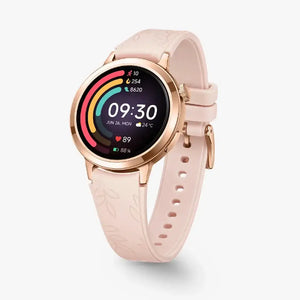
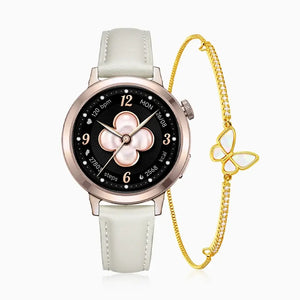
FANY Luna is designed for everyday wear, with an AMOLED display, activity tracking, heart rate monitoring, and synchronized notifications.
According to its official specifications, FANY Luna offers **up to seven days of battery life**.
Actual battery performance depends on usage and settings.
Practical FANY Luna Battery Tips
For daily use, consider the following:
- Keep display brightness comfortable rather than unnecessarily high.
- Limit nonessential phone notifications.
- Finish and save workout sessions after exercising.
- Review the health measurements you want to keep active.
- Maintain a stable connection with your compatible smartphone.
- Follow FANY's instructions when charging with the magnetic connector.
FANY Luna also provides watch face customization, allowing you to select a design that suits your preferences.
Before changing advanced settings, check which controls are available on your current FANY Luna software and FANY Fit App version.
How Long Does FANY Luna Take to Charge?
FANY Luna uses a magnetic charging connector, and the manufacturer advertises up to seven days of battery life.
Official FANY product materials currently contain different full-charge time figures, so the exact charging-time claim should be confirmed against the latest product instructions.
Battery life is an estimated maximum rather than a guarantee of seven days for every usage pattern.
What to Do If Your Smartwatch Battery Drains Quickly
If your smartwatch suddenly starts losing power faster than usual, try troubleshooting one setting at a time.
Step 1: Check Your Display Settings
Start by reducing brightness and turning off Always-On Display if your watch supports it.
Use the watch for a normal day and observe whether battery performance improves.
Step 2: Check for an Active Workout
Make sure a running, cycling, or other workout session hasn't been left active.
End and save any completed sessions.
Step 3: Review Notifications and Background Activity
Disable nonessential notifications and review apps that may be refreshing frequently.
If the device provides battery-usage information, check whether a particular app or feature appears unusually active.
Step 4: Check Bluetooth and Software
Confirm that the watch is paired correctly and isn't repeatedly disconnecting.
Restart the watch if necessary and check for available software updates.
Step 5: Inspect the Charger
Make sure the charging contacts are dry, clean, and properly aligned.
Use the recommended charging accessories and verify that the watch is reaching the expected charge level.
Step 6: Record Battery Performance
If battery drain continues, record:
- Starting and ending battery percentages
- Approximate hours of use
- Active workout modes
- Display and notification settings
- Recent software changes
This information can help the manufacturer's support team investigate the issue.
When Should You Contact Support?
Contact the manufacturer if the battery drains abnormally under comparable usage conditions, the watch fails to charge properly, or the device becomes unusually hot.
Stop charging or using a device that shows signs of battery swelling, physical damage, or unsafe overheating.
How to Create a Smartwatch Charging Routine
A consistent charging routine helps reduce the inconvenience of running out of battery during your day.
Depending on your smartwatch's charging time, you might charge it while getting ready in the morning, working at your desk, or taking a break from wearing it.
If you use sleep tracking, plan charging sessions so they don't routinely interrupt your nighttime recordings.
You don't need to drain the battery to zero before every charge. Follow the manufacturer's instructions for routine charging and long-term storage.
Frequently Asked Questions
How can I make my smartwatch battery last longer?
Start by reducing screen brightness, shortening screen timeout, limiting unnecessary notifications, and turning off Always-On Display if available. Review background activity, workout tracking, and other supported settings.
Does Always-On Display drain smartwatch battery?
Yes. Keeping information visible continuously requires power. Turning off Always-On Display can improve battery life on supported devices, although the savings vary by watch model.
Why does my smartwatch battery drain overnight?
Possible causes include continuous sleep or heart rate monitoring, display activity, wireless communication, background processing, or software problems. Compare battery performance across several nights under similar conditions to help identify the cause.
Does turning off Bluetooth save smartwatch battery?
It may reduce some wireless activity, but Bluetooth is usually needed for phone-connected features. Turning it off can disable synchronization and notifications, so troubleshoot excessive activity and connection issues first.
Does a smartwatch watch face affect battery life?
It can. Animated designs and frequently refreshing information may increase power consumption on some devices. The actual impact depends on the smartwatch's display technology and software.
How long does the FANY Luna battery last?
FANY Luna offers up to seven days of battery life according to the manufacturer's specifications. Actual runtime varies with use, including display settings, notifications, and activity monitoring.
Can software updates improve smartwatch battery life?
Sometimes. Updates may fix bugs or optimize power management, although installation and temporary background processes can also affect battery consumption.
Final Thoughts
You don't have to stop using your favorite smartwatch features to improve battery life.
Start with simple changes such as adjusting screen settings, managing notifications, ending workouts properly, and reducing unnecessary background activity.
If battery drain continues, check software, connections, and charging conditions before assuming the battery is defective.
For women looking for an everyday smartwatch with a lightweight design and an advertised battery life of up to seven days, FANY Luna is one option to explore.
The best battery-saving routine is the one that helps you keep the features you value while reducing unnecessary power use.


A nurse-turned-personal trainer and founder of Diary of a Fit Mom, Sia lost 45 lbs through clean eating and lifestyle changes—and has been helping women do the same ever since. Drawing on her own journey through pregnancy, motherhood, and IVF, she's passionate about making fitness feel approachable, realistic, and empowering for women at every stage of life. Your trainer and friend.